
Documentation
Models
Model presets keep a model, its connection, reasoning and speed together. Pick the default, then bind presets to roles, templates or a single run.
A model preset is a named set of model settings: which model, the connection its requests go through, how much it reasons and how fast it is served. Every Agent works with the global default preset unless its role, its template or its run says otherwise.
Presets let you change the default for the whole app in one click, and still give a demanding role a stronger model or a quick check a cheaper one, without editing each Agent.
Where you set models
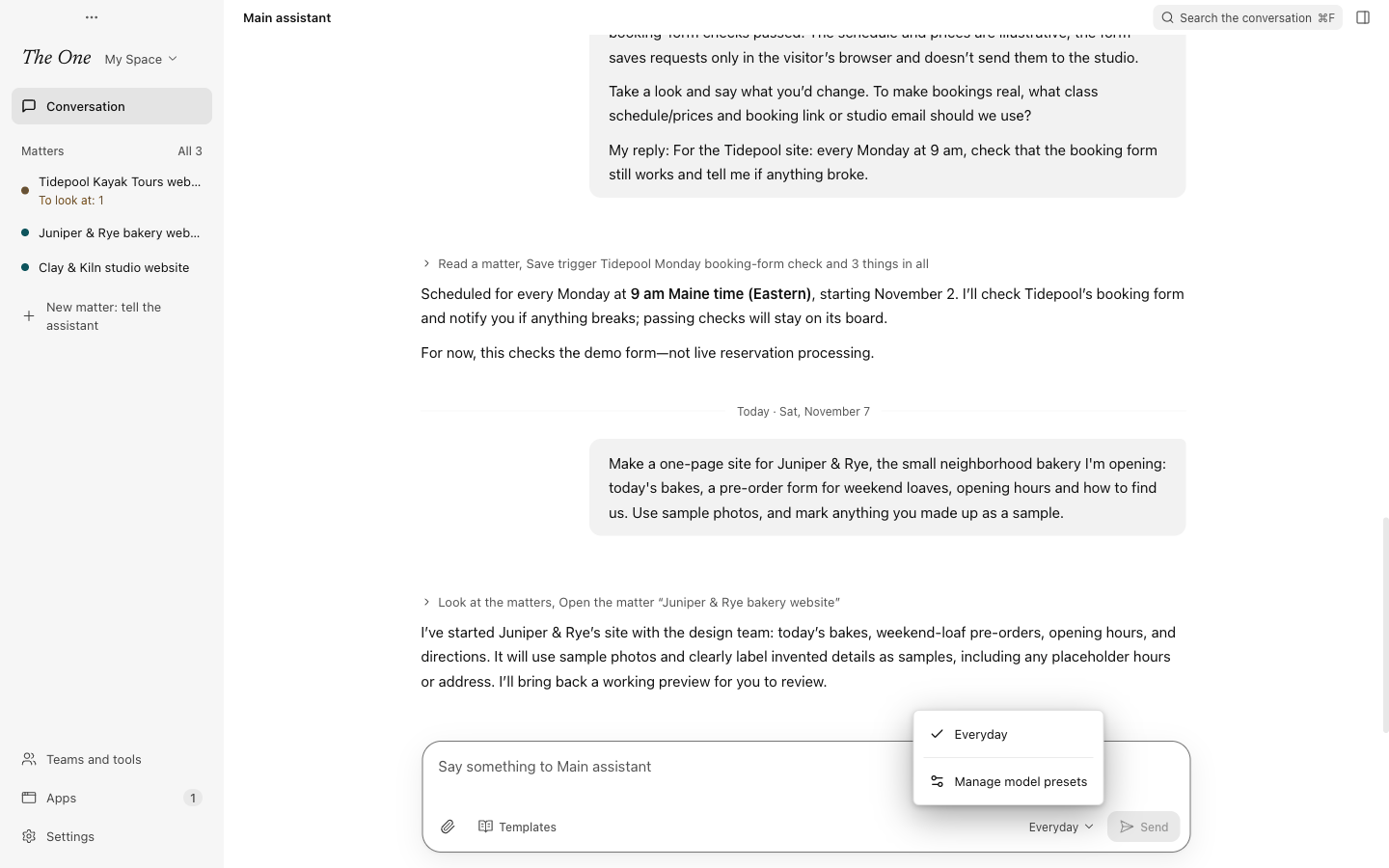
- The main assistant's composer. The model button at the bottom of the composer, beside Templates, shows the preset that is the global default. Open it to switch to another saved preset, or choose Manage model presets to edit them.
- Settings › Models and sign-in › Default model. The same editor as a page. Teams and tools › Models opens it too.
When there is no model connection yet, or no default model, a line at the top of the window says so and links to the fix: Add a connection or Set the default model.
Make a preset
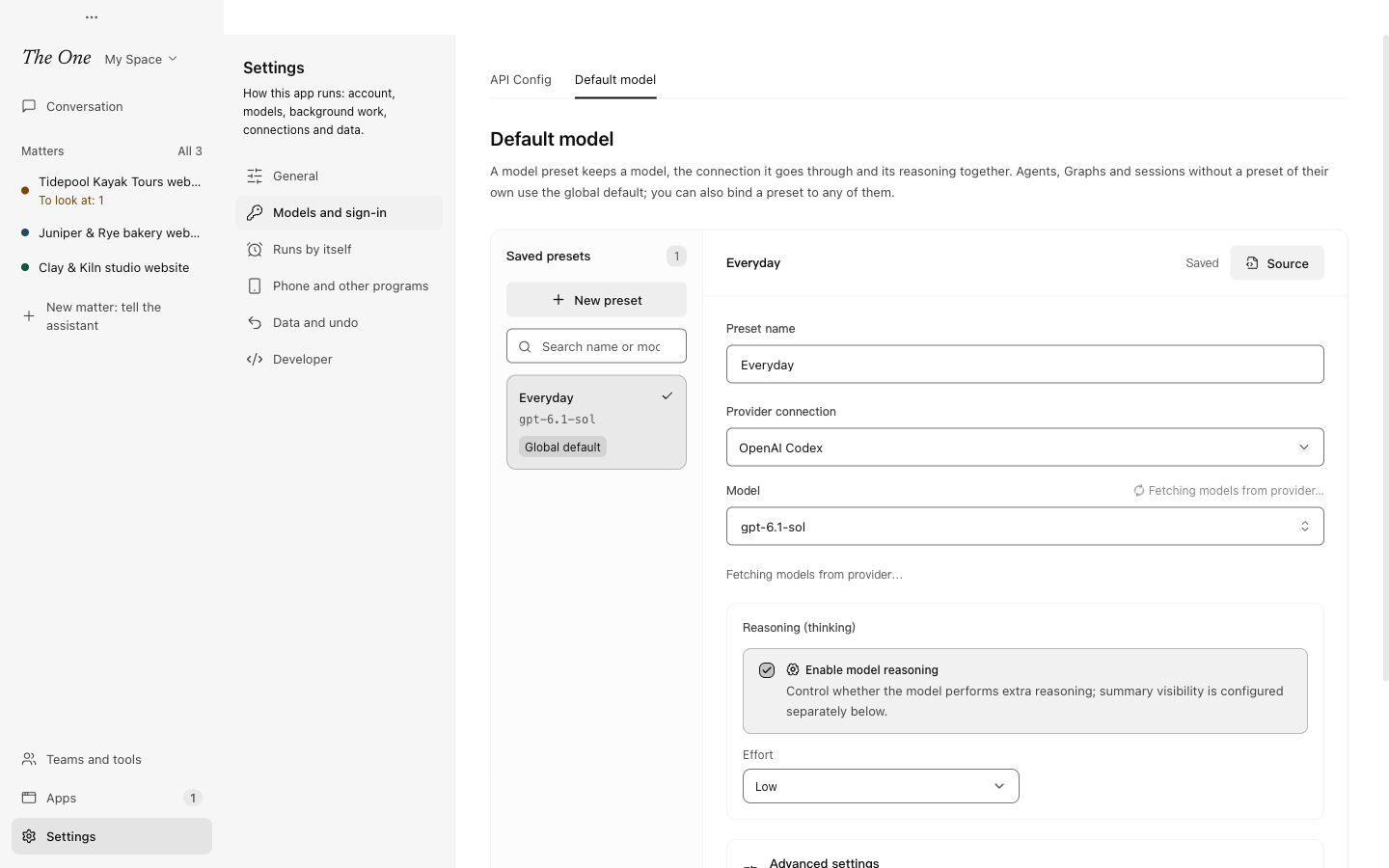
The editor lists your Saved presets on the left; the default one carries a Global default badge. Choose New preset, then fill in:
- Preset name: anything that tells presets apart, such as "Everyday" or "Deep research".
- Provider connection: the connection its requests go through. You add connections in Settings › Models and sign-in › API Config; see API configuration.
- Model: pick one from the provider's model directory. Refresh models asks the provider for its current list, for example when a model has just come out. If the directory is empty or cannot be read, type the model ID yourself.
- Reasoning (thinking): whether the model reasons before it answers, and how hard (Effort). The controls follow what the chosen model advertises: some models also take a thinking token budget or a reasoning mode, and some always reason.
- Advanced settings: the Speed / service tier, such as Fast (priority) or Flex, which appears only when the provider's catalog offers it, and a model capacity override for providers that report no context size.
Choose Save preset, then Use as global default if this preset should become the default. Changes apply from each Agent's next turn; a reply already being written finishes as it started. Renaming a preset keeps every binding, because bindings use the preset's ID, not its name.
There is no temperature setting: every request uses the provider's default. Older definitions that still name a temperature load as before, but the value is not sent.
The global default
The global default is the preset every role works with when it names no model of its own; in the official Space that includes the main assistant. Switch it from the model button under the main assistant's composer, or with Use as global default in the editor. The preset that is the default cannot be deleted; make another one the default first.
Give a role, a template or a run its own model
You can bind a preset at several levels, and the most specific choice wins:
- One run. When the main assistant hands work to a working group, it can pick presets for that group's run alone. Ask it to do a piece of work on another model and nothing else changes. A group keeps the models it started with: to move work to other models, the main assistant gives it to a new group.
- A role. In the role's editor, under Model & Parameters, pick a preset, keep Use default model, or configure a model separately. See Roles.
- A run's default, in the developer view. In All runs, a run's Default Model button replaces the global default for the roles in that run that use the default model. See All runs (developer view).
- A template. The model preset menu in the toolbar of the template editor sets a default for the roles in that template that have no model of their own. See Working-group templates.
- The global default, for everything else.
You can also ask the main assistant to do any of this: it can list and change presets, bind one to a role or a template, or run one piece of work on another model.
Presets live on this computer
Presets are stored on your computer, not in a Definition Space (see Definition Spaces). A Space's roles and templates refer to a preset by its ID, and a preset refers to its connection without copying any key. A Space made on another computer can therefore name presets you do not have, and those roles cannot run until you bind them to one of yours or switch them to the default model. The Check the Space's models step of Get started lists them and offers Use the default model, and New Graph in All runs checks every role's model and connection before it starts a run.
If you delete a preset, the roles and templates still bound to it need another one: The One reports the missing preset instead of quietly using a different model. Deleting a connection leaves the presets that use it as they are: Agents on those presets cannot reach a model until you pick another connection for the preset.
Source, next to a preset's name in the editor, shows the preset read-only, as the app's preferences file stores it.
For the providers you can connect and what the official model service costs, see Models and Pricing.