
Documentation
Settings
What each section of Settings in The One holds: general and appearance, models and sign-in, what runs by itself, your phone and other programs, data and undo, and the developer's pages.
Settings is where you decide how The One runs on your computer: your account and updates, how the app looks, the connections to model services and which model Agents use by default, what keeps running in the background, your phone and other programs, what Agents changed and how much disk the app takes, and what developers look at. Open it from the bottom of the sidebar; it starts on General.
What the work is done with, such as the working groups, roles, Skills and Plugins, lives in Teams and tools instead.
Settings has six sections. Each opens on its first page, and a section with more than one page names its pages above the page, for example General and Appearance.
| Section | Its pages |
|---|---|
| General | General, Appearance |
| Models and sign-in | API Config, Default model |
| Runs by itself | Background & triggers |
| Phone and other programs | Phone channel, Outside callers |
| Data and undo | Action log, Storage, Memory recall |
| Developer | Developer view, Evaluations |
General
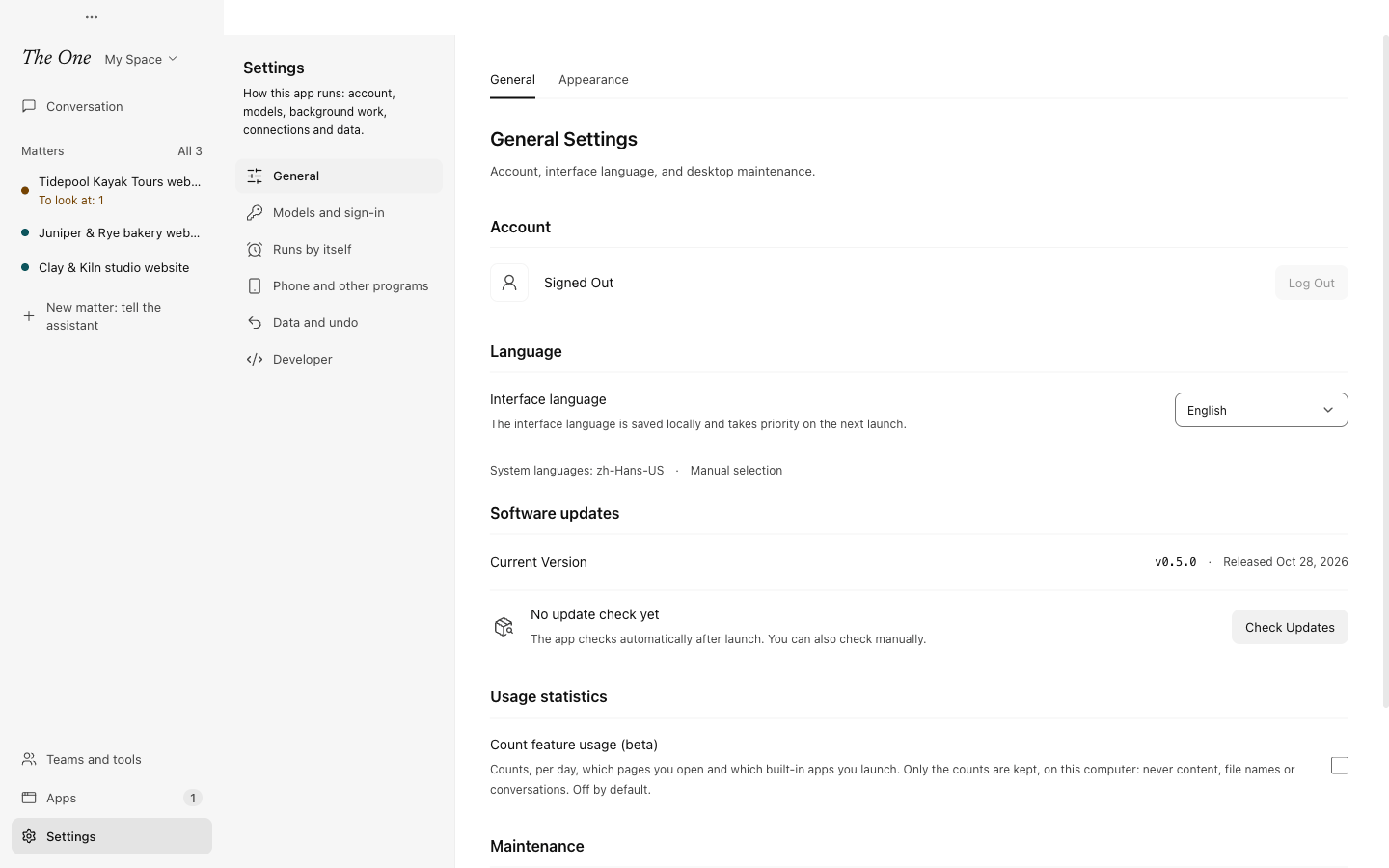
General
- Account: the email you are signed in with, whether it is a personal or an organization account, and Log Out.
- Language: the Interface language, English or 简体中文. Your choice is kept on this computer and used from then on instead of the system language.
- Software updates: the version you run and its release date. The app checks for updates after it starts and downloads a new version in the background. Check Updates looks now; Install and Restart installs a downloaded version, which stops the backend and restarts the app.
- Usage statistics: Count feature usage (beta) counts, per day, which pages you open and which built-in apps you launch. It is off by default and keeps only the counts, on this computer: never content, file names or conversations.
- Maintenance: Export Diagnostics saves the app's logs and diagnostic information in a file you can send to support. Restart Backend restarts The One's local services; use it when the app tells you a change needs it.
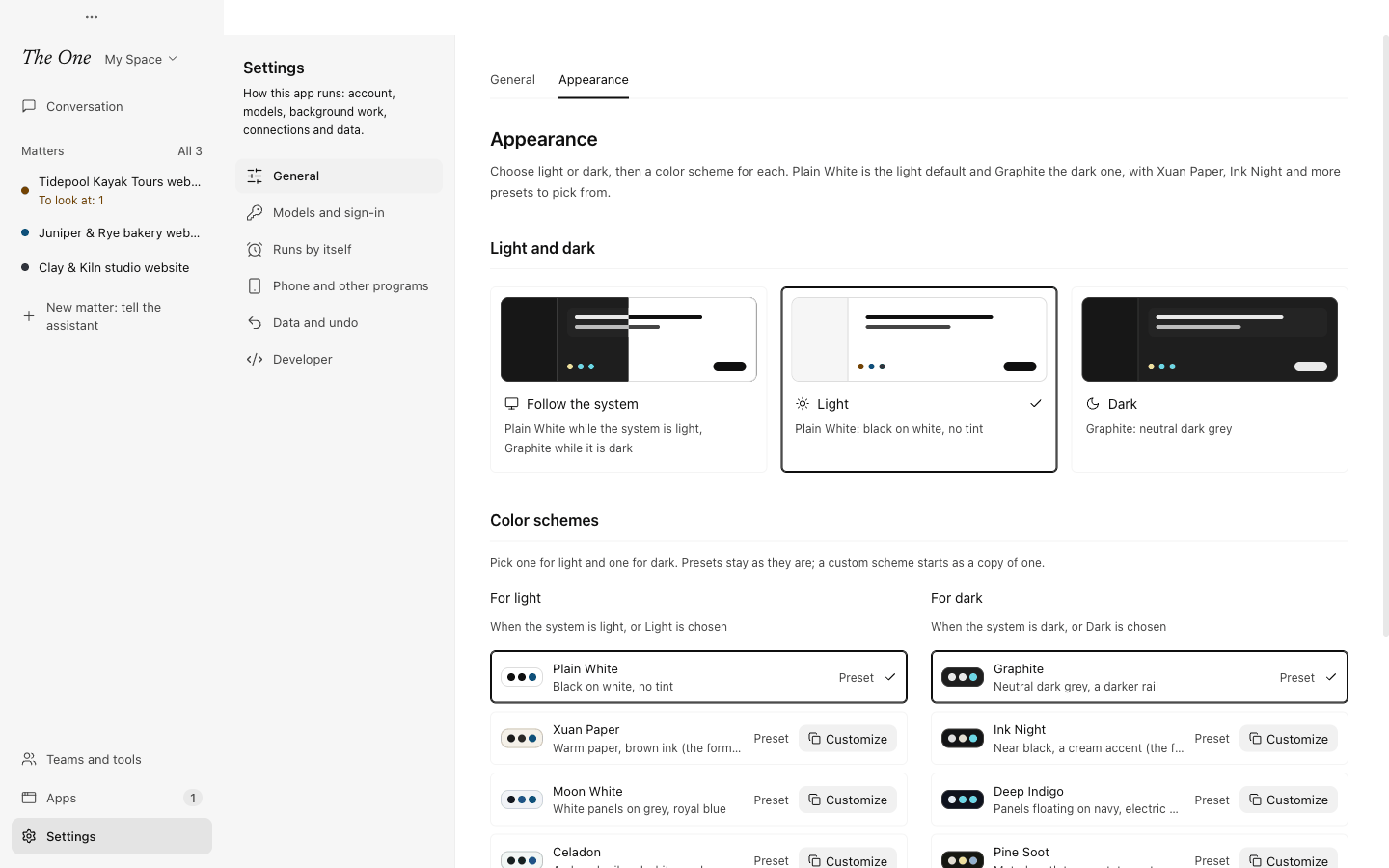
Appearance
Choose Follow the system, Light or Dark; Light is the default. Light uses the Xuan Paper scheme and Dark uses Ink Night, unless you pick another one for each under Color schemes, from nine more presets.
Customize copies a scheme so you can change it: seven base colors, from the surface and the text to the colors that mark what needs you, what is running, what was delivered and what is failing, with a WCAG AA contrast check as you go. A scheme that misses the check still saves. Copy scheme JSON and Import… take a scheme to another computer.
Models and sign-in
API Config
The connections Agents send their model requests through: the official connection that comes with a The One membership, Sign in with ChatGPT, API keys for OpenAI, Anthropic and Google Gemini, and custom providers, including models on your own computer. See API configuration.
Default model
A model preset keeps a model, the connection it goes through and its reasoning together, with the service tier under Advanced settings. Agents, Graphs and sessions without a preset of their own use the one marked Global default, and edits reach them from their next turn. The model button under the main assistant's composer switches the global default, and its Manage model presets opens the same editor. See Models.
Runs by itself
This section is the Background & triggers page. Triggers wake your Agents when a time comes, when something new turns up (new orders or mail through a Plugin tool, files in a folder, a web page, a command's output) or when a webhook comes in, even with nobody at the computer. Usually you just ask, for example "tidy my inbox every day at 8", and an Agent sets the trigger up. Here you can see, change and try them (Fire now), add one (New trigger) or Pause all.
Staying around has three switches: Keep running after the window closes (it matters on Windows; on macOS the app keeps running anyway and the switch stays on), Open in the background at login, and Keep the computer awake while triggers wait, which works on mains power only. The Webhook entry takes requests only on this computer, on port 8013 by default. See Triggers and running in the background.
Phone and other programs
Phone channel
Give your main assistant work from your phone, answer the questions Agents ask and see what they deliver, through your private Agent Room room. It needs the Agent Room Channel Plugin. Paste the invitation or the Agent code from the room and choose Connect, then send the pairing code from Bind your account in the room, so that The One listens to you alone. See Phone channel and outside callers.
Outside callers
Let Claude Code, Codex, agents that speak A2A or your own scripts on this computer use your teams as a tool: list them, give one a task, wait for the delivery and answer its questions. Each program gets a token of its own: Issue token shows it once, together with the setup commands for Claude Code and Codex, and Install the-one adds a command-line tool. Calls come in only on this computer, on port 8014 by default. A program with a token can have your teams do anything they can do here, so give tokens only to programs you trust and Revoke the ones you no longer use. See Phone channel and outside callers.
Data and undo
Action log
Every tool call an Agent makes is recorded here: the files it created, changed or deleted, the addresses it reached, and how the call ended. Files are copied before an Agent deletes or overwrites them, so you can Undo a whole run, one call, or everything since a time you choose, for as long as the copies are kept (7 days). What happened outside this computer is listed but cannot be taken back. The log covers every Space on this computer, and it only records and undoes: it never stops anything. See Action log, undo and stopping.
Storage
This page shows how much disk the app's data takes, item by item (the database, command output, tool results, logs, the action log and its trash, evidence packs and sent requests), and how long each is kept. When free space runs low, the title bar warns you and working Agents are told. Lower still, protection mode stops saving full command output and database snapshots and removes expired files at once; Agents keep running.
Plugin workspaces hold what Plugins download, render and keep in their browsers; Clear deletes a workspace for good. The page also counts the Docker data and the git worktrees that Agents leave outside the app, but never deletes them: it gives you the command to run in a terminal yourself.
Memory recall
When Agents search memories, project knowledge and the conclusions of earlier sessions, the results are ranked by meaning, not only by wording. Choose the Embedding model that does this:
- Automatic (recommended): the first that works of an Ollama or LM Studio embedding model on this computer, the default provider's embeddings API, and the built-in model.
- Built-in model: runs on this computer and needs no API; it downloads the first time it is used.
- Provider connection: a connection's embeddings API. The text of memories and knowledge goes to that provider.
- Custom address: any OpenAI-compatible embeddings address that needs no key.
- Off: keywords only.
Rebuild index clears the computed vectors; what Agents searched in the last 30 days is indexed again in the background. See Memory and recall.
Developer
Developer view
The Developer view page has one switch, Show what developers look at, off by default. Turned on, it draws the same data the way a developer looks at it: the main assistant's conversation shows its system prompt, the notices as written for its model, and every tool call with its arguments and result; matter pages, Needs you and the cards of what waits for you show IDs; and Teams and tools adds Atlas, Definition Spaces, All runs and Evaluations. Only the display changes, not the data. Cmd+Shift+D (Ctrl+Shift+D on Windows) turns it on or off anywhere, and while it is on, the title bar says Developer view; a click there turns it off.
Below the switch, Open all runs opens All runs: every run in the current Space, the working groups' runs included, down to each Agent's messages, context and tools. The main assistant's own conversation stays on the home page. See All runs (developer view).
Evaluations
How each Graph did on the acceptance tasks in live runs: how often it delivered, how long it took and how many model calls it made.
The app menu and the tray
The app menu (on macOS, the The One menu in the menu bar) holds Open Logs (Cmd+L), Export Diagnostics, Check for Updates, Install Downloaded Update, Restart Backend, Stop All Agents (Cmd+Shift+.), Log Out and Quit. On Windows the menu bar is hidden: use the tray menu, and Settings › General for diagnostics, updates and restarting the backend.
Stop All Agents is also in the menu of The One's icon in the macOS menu bar or the Windows system tray. It interrupts every Agent, ends the commands they started, and pauses every run and trigger until you resume them. See Action log, undo and stopping.
Keyboard shortcuts
Press ? anywhere you are not typing, or Cmd+/ (Ctrl+/ on Windows), to see every shortcut; The One menu (…, at the top left of the window) has Keyboard shortcuts too. These work everywhere:
| Keys | What they do |
|---|---|
| F6 / Shift+F6 | Move to the next or previous part of the window |
| Cmd+K or Cmd+F (Ctrl+K or Ctrl+F) | Go to this page's search |
| Shift+Esc | Go to the message box |
| Cmd+Shift+A (Ctrl+Shift+A) | Open the applications menu |
| Cmd+Shift+D (Ctrl+Shift+D) | Turn the developer view on or off |
| Esc | Close a dialog, menu or drawer |
On macOS the app menu adds two more: Cmd+L opens the logs and Cmd+Shift+. stops all Agents.
The list also covers the session and preset lists, the message box, the review pane, and the editors and canvases.