
Documentation
The main assistant
Each Space has one main assistant that answers what it can and turns bigger work into matters that working groups move forward.
The main assistant is the conversation The One opens on, and the one place to bring anything you want done. It answers what it can at once, keeps bigger work as matters, hands that work to working groups and follows it until you are satisfied.
One conversation that goes on
Every Space has its own main assistant: Conversation in the sidebar, Main assistant on the page. It is one permanent conversation that runs across days and across all your matters. There is no new chat to start and no session list to tidy up. Everything you ask lands in the same place, so the assistant can connect what you said last week with what you ask today.
The assistant belongs to its Space. When you switch Space at the top of the sidebar, you switch to that Space's assistant, its matters, what needs you and its morning report. If Agents are still at work, The One asks first, because switching stops them (Stop and switch).
The assistant is an Agent like the others. Its role, main-assistant, is under Teams and tools › Roles. It works with your default model (Settings › Models and sign-in › Default model) unless you give that role a model preset of its own in a Space of yours. Its conversation lives on the home page, not in All runs.
What it does itself, and what becomes a matter
The assistant decides each time:
- What it can settle in seconds, it answers directly: a question, a quick look-up or status check, one small change.
- A follow-up, an addition or a change of mind about something already going on, it puts on that matter and passes to the working group on it.
- Work that produces something to deliver, runs an edit-and-test loop, gathers from several sources or will be followed over time becomes a new matter.
A new matter gets a short title and an overview that says where the work should get to, with every result you asked to see. The overview matters: deliveries are later held against it.
In the same step, the assistant hands the work to a working group. The group starts at once, and the assistant stays free for you and your other matters. It picks the group from the Space's working-group templates: software work in a code project goes to the software team (polished_software_dev), whose lead and checkers turn your requirements into tests as it builds; research and studio work goes to the template made for it; other multi-step work goes to the General group (chat). Among the templates that fit, it prefers one that has done this kind of work well. It has a new template written (by the Definitions studio, atlas) only when none fits and the work will come back.
See Working-group templates, Matters and boards and Working groups.
Your words, as you said them
When the assistant briefs a group, it copies your request into the brief word for word instead of retelling it. It adds only what the group cannot know: the project folder, a deadline, and what you said elsewhere that bears on the work. It does not tell the group how to split the work, what to test or which roles to use.
This is on purpose. A retold request carries the assistant's reading of it, and the group would settle the open points the way the assistant read them rather than the way you meant them. Follow-ups travel the same way: when you answer, correct or ask for more, the assistant passes your words on to the group already on the matter.
While the groups work
The assistant keeps each open matter's one-line summary current: where it stands and whom it waits for. You see that line under the matter's title, and in the sidebar and the Matters overview when nothing more urgent needs saying.
Questions
When a group asks something, the question shows on the matter's board at once, and the assistant gets the first chance at it. It answers when the cards, your earlier words or ordinary judgement settle it. When only you can decide (your taste, your money or accounts, a choice you have not made yet), or when you are the one talking to that group, it leaves the question to you and you are notified at once. It never makes up your answer. If it has done neither after three minutes, you are notified anyway, so no question waits unseen.
Deliveries
When a group hands work back, the assistant holds it against what you asked for: each result you asked to see, and whether it stands up. An empty result, failing checks, or numbers from before the group's own fix fall short, however the group words them.
- When it falls short and the next step is the group's own (find out why, fix, rerun, add what is missing), the assistant sends the group back itself and tells you in a line.
- When the next step needs you (money, an account or key, a decision only you can make, restarting the app), it asks you one concrete question with the options.
- When it does what you asked, it tells you what came of it.
Its account starts with the conclusion against what you asked, not with "done": whether the work got there and what that means. Then come the numbers that matter, why it fell short when it did, and last the next step: who does what, and what you are to do now. The group's own words are on the board, so the assistant does not repeat them.
Verdicts are yours
You judge each delivery with Accept, Rework or Give up, on its card in this conversation, on the board, in Needs you or in the morning report (see Needs you, deliveries and the morning report). You can also just tell the assistant ("good", "change the colours", "drop it"): it records your verdict and, for a rework, passes your words to the group. It never judges a delivery for you, and closing a matter is not a verdict.
Groups that stall
If a group's card still says it is working but nothing in it has moved for two minutes, or its Agents have only been retrying an error for ten, the assistant is told. It reads what the group last said and decides: tell the group what it lacks, give the work to another group or to other models, or tell you what is stuck. Only you can fix a model connection, its key or its usage limit; once you have, the assistant retries the group.
Quiet work
Work brought by a quiet trigger (one that is not set to tell you) goes on the matter's board without the assistant telling you, unless it falls short. See Triggers and running in the background.
What it may do for you
The assistant holds every control you have on a matter's page. When you ask, it closes or reopens a matter, pauses, resumes or retries a group, and puts a matter's waiting work first. It sets or removes a matter's usage limit, and resumes work paused at one, only on your word. It also keeps cards on the boards: notes, checklists, links, files, readings and panels.
It has full authority over your work, including the sign-ins and saved keys on this computer and the spending the work needs. Nothing waits for your approval. It asks you only when it chooses to, for example when only you know something it needs. What keeps you in control is the record of everything Agents did and the undo that goes with it: see Action log, undo and stopping.
It can improve the Space itself too. Ask for a new template, role or Skill and it writes the definitions, itself or through the Definitions studio. Ask it to make the Space better at its own work and it opens the evolution matter (see Evolution: the lab and the nightly review). Such changes take effect only in a Space of your own; in the read-only official Space they stay proposals. See Definition Spaces.
The home page
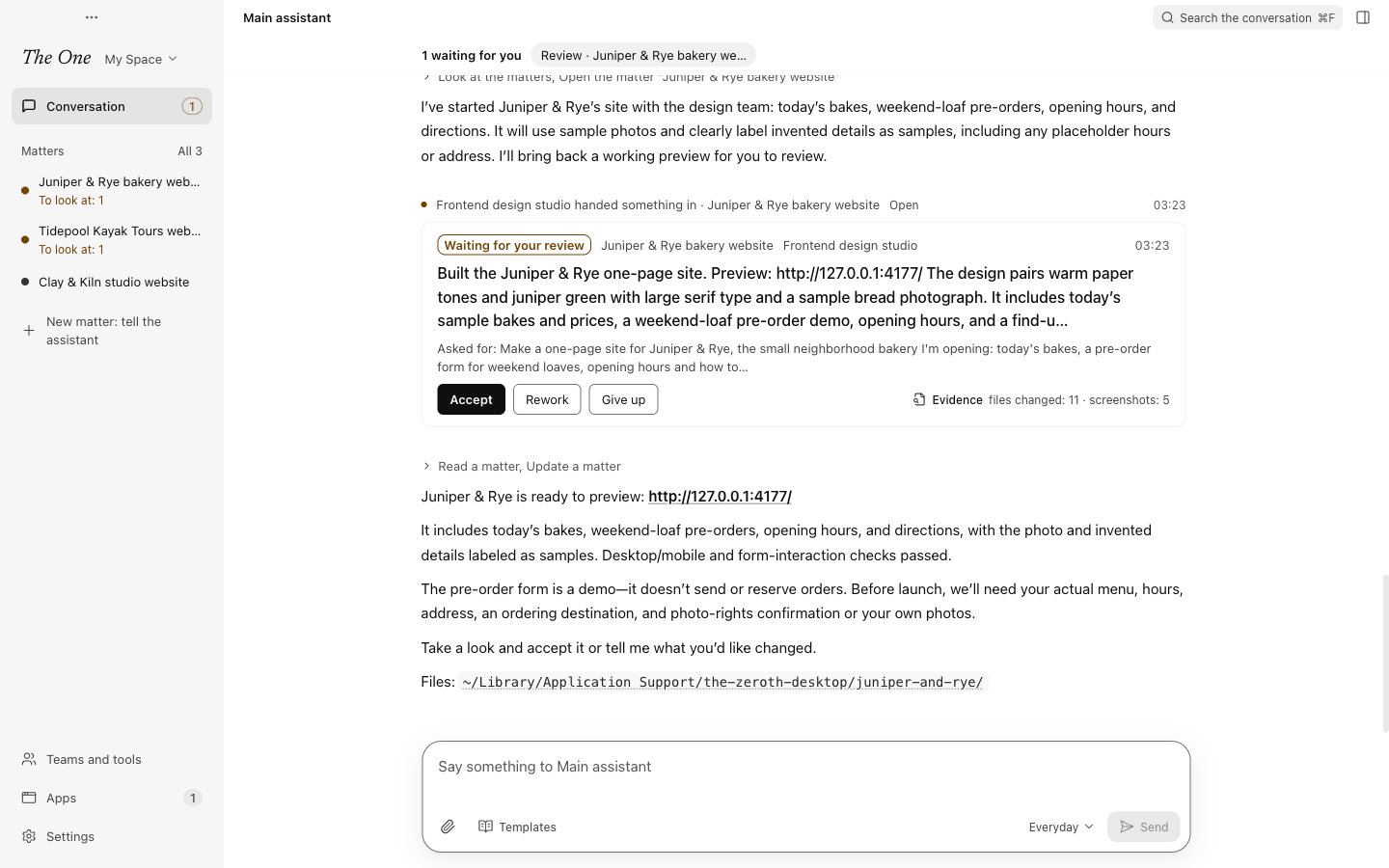
The home page is the conversation with the main assistant, across the whole window beside the sidebar. Your matters are in the sidebar and in the Matters overview, which the Matters heading in the sidebar opens; see Matters and boards. New matter: tell the assistant, under the matters in the sidebar, brings you back here with the cursor in the composer.
Above the conversation, a strip says how many things wait for you (for example 3 waiting for you) and has a button for each that says what to do and where, such as Review · Checkout redesign or Answer · Refund policy; after the first five, a button such as 2 more shows the rest. A button takes you to that thing's card in the conversation, under the line that announced it, and makes the card stand out for a moment. What the conversation does not show there, such as a model connection to fix, a matter paused at its limit or a notice from further back, opens its card under the strip instead. Either way you handle it on the spot: judge a delivery, answer a question, go and fix a model connection, or resume the matter. A handled card leaves the strip, and with nothing waiting the strip is gone. These are the same cards as in Needs you and on the matter's board, and the strip's count is the number beside Conversation in the sidebar; see Needs you, deliveries and the morning report.
Search the conversation, at the top right, or Cmd+F (Ctrl+F on Windows) opens a search above the conversation. It looks through what the conversation shows: your words, the assistant's, and the lines that say what happened on a matter. Hits come newest first; a click or Enter takes you to the message and makes it stand out, and Esc closes the search. It searches as far back as the conversation has loaded.
In a wide window an overview sits beside the conversation: At work lists the working groups at work and the matter each works on, Delivered lately the latest deliveries, each opening its evidence and marked For you to look at while it waits for you, and Coming up the next scheduled work and any matter stopped at its spending limit. Overview, at the top right, hides it or brings it back, and the app remembers your choice. In a narrower window it opens over the conversation when you ask for it.
Looking at the conversation marks what the assistant handed back as read.
The day's greeting
When you open the app for the first time in a day, or come back to it on a new day after an hour or more away, and something happened that you have not seen, the main assistant greets you in the conversation: Good morning (or afternoon, or evening), what happened since you last looked, and how many things wait for you in the strip above. The greeting is the assistant's message at the time it greeted, so what you write next comes under it. Open the morning report opens the full report (see The morning report), and Got it puts the greeting away for the day.
Writing to it
Enter sends what you type; Shift + Enter starts a new line.
- Attach images or files with the paperclip (Add image or file), by dropping them on the conversation or by pasting. Images are compressed to fit 5 MB; other files can be up to 10 MB.
- Templates inserts a request template from your Space for you to fill in, such as Implement a feature, Diagnose and fix a problem, Review and verify work or One-person company.
Your own words show as your messages, including what you send from your phone (marked From your phone). The assistant's replies show in full; what it did on the way folds into one line of plain words that opens into one line per step. When it asks you something, the question is marked Waiting for your answer, and Reply to this makes what you send next the answer. A line above the first message of each day names the day: Today or Yesterday with its date, and the date alone for earlier days.
Messages that reached the assistant from elsewhere show as one line saying what happened, so they never mix with yours: a working group asked a question, handed something in, could not finish, keeps failing or stopped on a matter (Open goes to that matter), a trigger came due, or an outside program wrote. The line names the group in plain words, such as Software team. While the question or delivery it brought still waits for you, its card sits under the line, with the matter and the group it came from, and you answer or judge it there. Once it is handled, the card folds into one line where it was, saying what became of it: for example "You accepted delivery 1 of “Checkout redesign”" with Look for its evidence, or "The main assistant answered “Refund policy” for you" with the answer. On the latest delivery of a piece of work, Change your mind on that line brings back the verdicts it still allows.
A line above the composer says what the assistant is doing (thinking, at work, tidying up its memory), and Stop interrupts it. While it rests, the line says Main assistant is resting; say something and it wakes up. When a reply did not get through, the message says why in plain words, for example that the model is too busy, and the line says when it tries again, with Try now to try at once. To talk to the assistant from your phone, see Phone channel and outside callers.
The developer view, which you turn on in Settings › Developer or with Cmd+Shift+D (Ctrl+Shift+D on Windows), shows the conversation the way a developer reads it: the assistant's system prompt, the notices as written for its model, and each tool call with its arguments and result. See Settings.
Before a model is set up
The assistant needs a model before it can start. Until you have connected a model service and picked a default model, the home page says The main assistant has no model yet, and the composer's button reads Connect a model first: it opens the step of Get started that is missing. You can still write down what you want. Your words are kept, and they wait in the assistant's composer once it can start. See Quick Start.
Coming from 0.4
Up to 0.4.x you started a new chat for each task; that button is gone. The first time a Space has its main assistant, your earlier sessions move to Archived, at the bottom of All runs (Open all runs in Settings › Developer), where you can still open or restore them. Nothing is deleted, and sessions still at work or pinned stay where they were. To run a template yourself, outside any matter, use New Graph in All runs; see All runs (developer view).