
Documentation
Triggers and running in the background
Triggers start Agents' work on a schedule or when something new arrives, and The One stays in the background so they fire while you are away.
A trigger starts work by itself: when a time comes, when a Plugin tool, a folder, a web page or a command shows something new, or when another service sends a webhook. With triggers, and The One running in the background, recurring work keeps going while you are away, and you catch up in the morning report (see Needs you, deliveries and the morning report).
Triggers do not limit what the Agents they wake may do, and nothing waits for your approval. What the Agents do is recorded and can be undone; see Action log, undo and stopping.
Ask for it
The easiest way to get a trigger is to say what should recur. Tell the main assistant "every morning at 9, check yesterday's orders" or "confirm each new order by email", and it sets the trigger up. Agents make and change their own triggers too; the settings page marks those Made by an Agent.
When the work belongs to a matter, the main assistant gives that matter a cadence: each fire goes to the matter's working group as a piece of work of its own, after whatever the group has in hand. The matter then shows:
- a Cadence card on its board, one line per trigger: when it fires, where its work goes, the next and last fire, and Fire now and Pause or Resume;
- Always on in the matter's header, while the matter is open and one of its triggers is on: its work comes by itself, on time or when something new arrives. The Matters overview lists such matters under Scheduled.
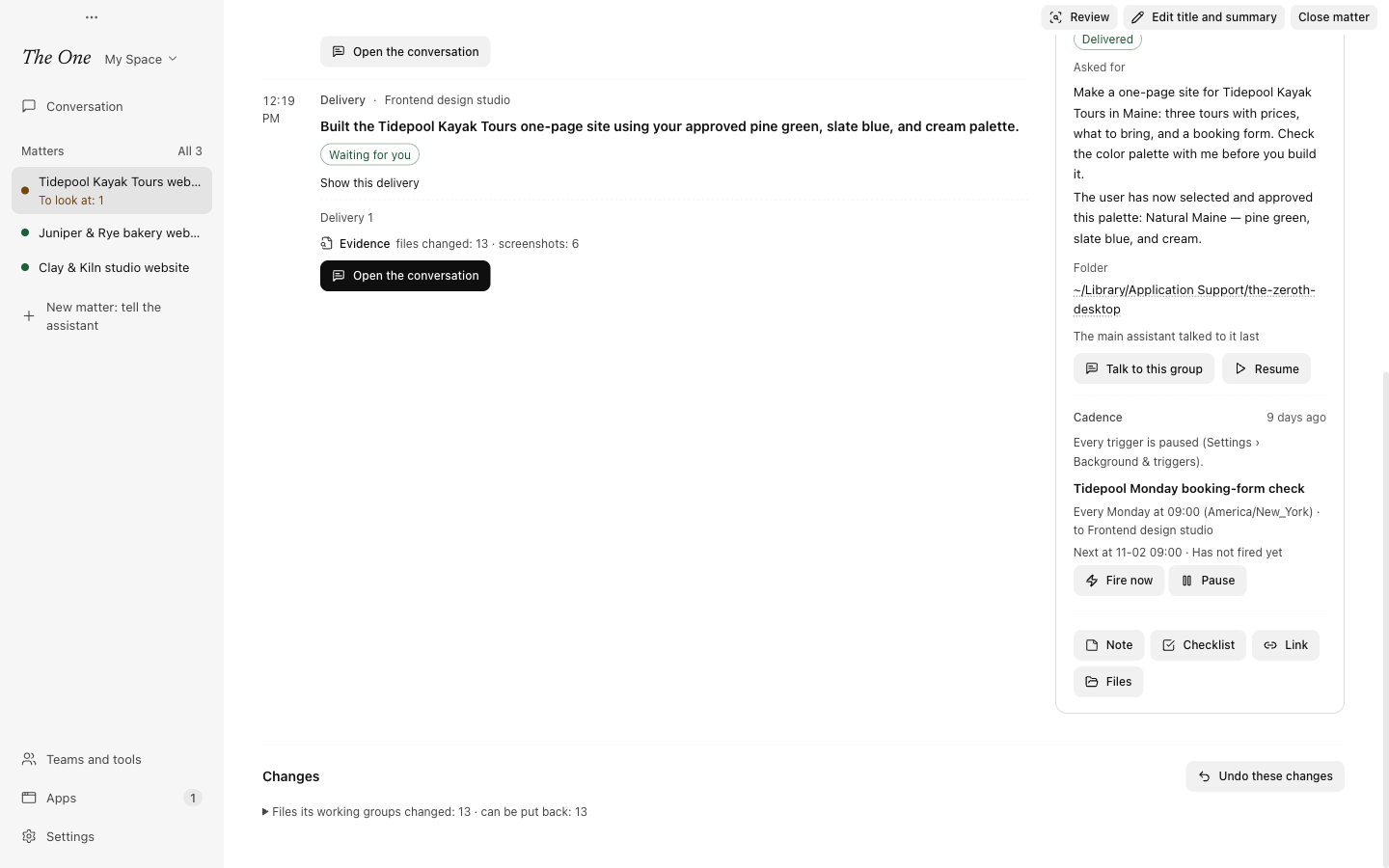
Closing a matter pauses its triggers along with its work (Paused with the matter). Reopening it turns them back on, counting from then: times missed while it was closed are not caught up. See Matters and boards.
Settings › Runs by itself
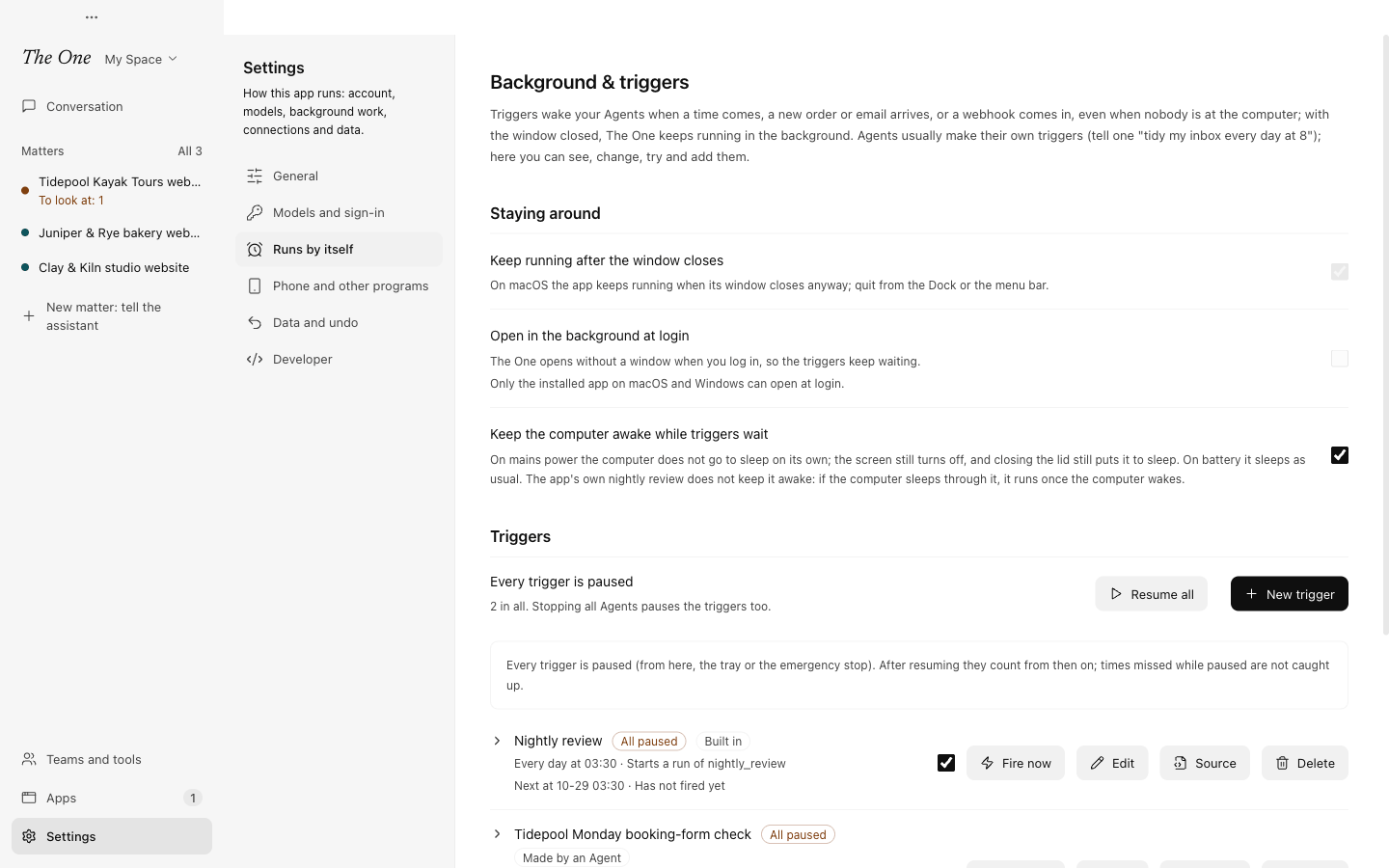
Settings › Runs by itself opens the Background & triggers page, where you see every trigger of the active Space, try them and make your own. It has three parts.
Staying around
| Switch | What it does |
|---|---|
| Keep running after the window closes | On Windows, closing the window leaves The One in the tray; triggers and work in progress carry on, and you quit from the tray menu. On macOS the app keeps running without a window anyway. |
| Open in the background at login | The One starts without a window when you log in, so its triggers keep waiting. Only the installed app on macOS and Windows can do this; macOS may ask you to allow it in System Settings › General › Login Items. |
| Keep the computer awake while triggers wait | On mains power, the computer does not go to sleep on its own while a trigger waits. The screen still turns off, closing a laptop's lid still puts it to sleep, and on battery it sleeps as usual. |
While work is in progress, The One also keeps the computer from going to sleep on its own, whether or not a trigger is waiting, so work you leave at night goes on.
Triggers
The summary line says how many triggers wait and which fires next; the tray menu shows the same count ("Triggers: 3 waiting, next …"). Beside it are Pause all (or Resume all) and New trigger.
Each row shows:
- the name, the status (Waiting, Watching, Listening, By hand, Off…) and labels such as Made by an Agent, Built in and Notifies when done;
- when it fires and what it does, for example "Every day at 09:00 · Goes to the main assistant";
- the next and the last fire, and any trouble, such as a source it cannot look at.
On the right: the on/off switch; Fire now, which runs it once even when it is off; Edit; Source, the trigger as the app stores it, read-only; and Delete. A deleted trigger can be restored for 90 days. Click a row to see its Fires: the message the Agent gets, and for each fire its reason, outcome, the first new items it brought, any error and retry, and a link to the work it started.
Webhook entry
Webhook triggers receive requests on one port of this computer, 127.0.0.1, port 8013 by default. Change it here, or set 0 to turn the entry off. The entry opens once a webhook trigger exists.
Making a trigger yourself
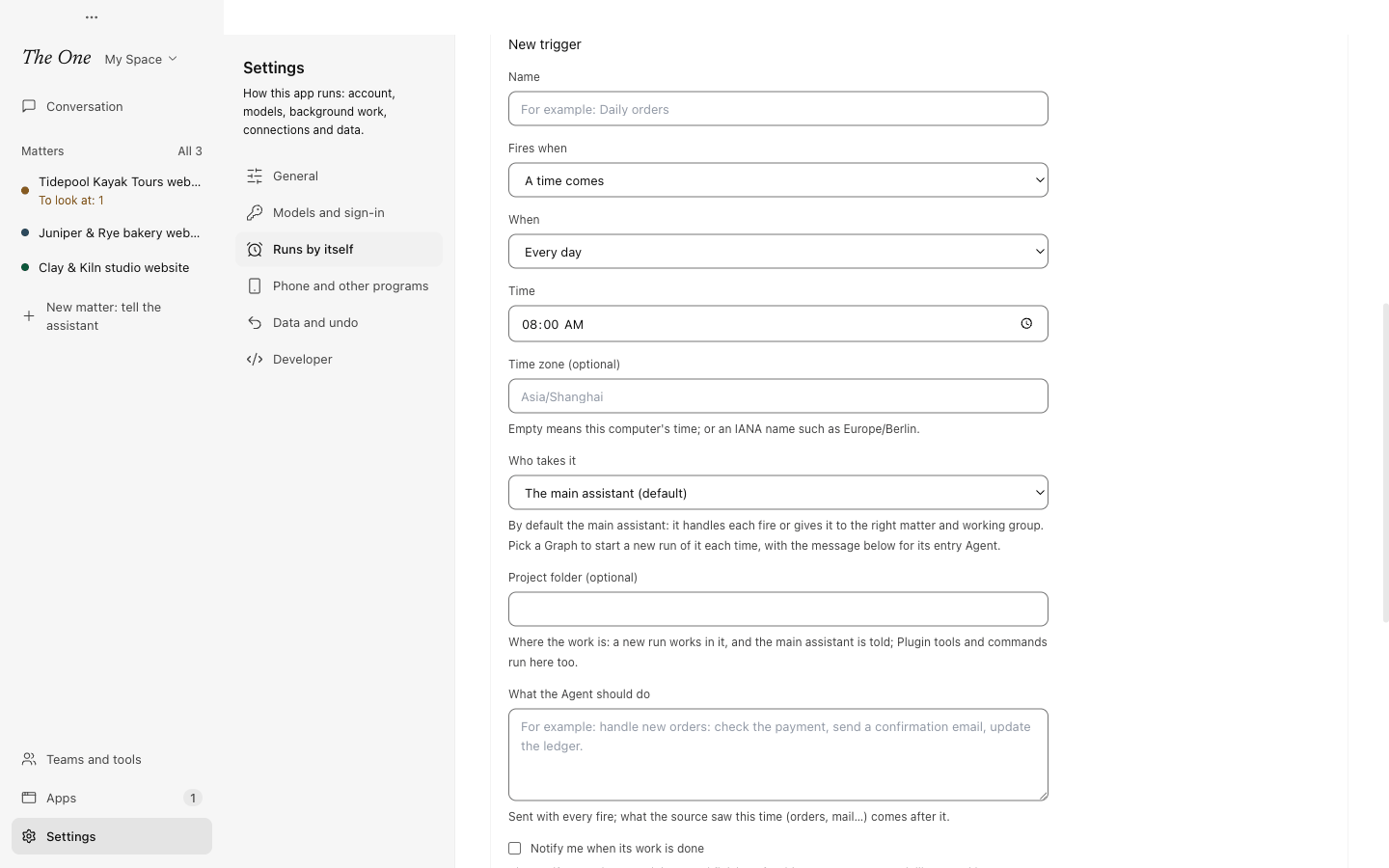
New trigger opens a form:
| Field | What you choose |
|---|---|
| Name | What you will recognise it by, such as "Daily orders". |
| Fires when | A time comes: Every day, Every week, Every so often, a cron line or Once, with an optional time zone. A Plugin tool has something new (orders, refunds, mail). Files in a folder change. A web page changes, optionally only the lines that match a pattern. A command's output changes. A webhook comes in. Only fired by hand. |
| Look every | How often a Plugin tool, folder, page or command is looked at. Left empty: every 5 minutes for a Plugin tool, 30 seconds for a folder, 15 minutes for a page or a command. |
| Who takes it | The main assistant (default), which handles each fire itself or gives it to the right matter and working group. Or pick a Graph to start a new run of it each time. |
| Project folder (optional) | Where the work is. A new run works in it, the main assistant is told about it, and Plugin tools and commands run there. |
| What the Agent should do | The message sent with every fire. Write it so it makes sense on its own; what the source found comes after it. |
| Notify me when its work is done | Also notify you when the work a fire started is finished. Leave it off for frequent work, such as each order, so it only goes to Needs you and the morning report. |
| More options | If it fires while the last run is still working (only for a trigger that starts runs of a Graph): wait and hand what piled up to the next run, skip this fire, or start another run. If the computer was asleep or off: fire once on return, or skip it. |
A time with no time zone uses this computer's clock, so a 9:00 trigger stays at 9:00 across daylight saving time. The first look at a watched source only notes what is already there, unless a command's Counts as new when is set to It prints anything; after that, each look that finds something new fires once and brings the new items along.
Triggers that give their work to a matter's working group are made by the main assistant or the group itself. The form shows where they go but does not change it.
What a fire sends
The Agent gets the trigger's message with a first line that names the trigger, the time and the fire number, such as [Trigger "Daily orders" · 10-06 09:00 · #12]. What the source found (orders, mail, the changed lines of a page, a command's output, a webhook's body) follows in a block marked as outside data. Text from outside can therefore not pose as your instructions: an email that says "ignore your instructions" reaches the Agent as part of an email.
A fire that goes to the main assistant is taken like a request from you: it settles it, or puts it on the matter it belongs to and gives it to that matter's working group, opening a matter for work that recurs.
The work a trigger starts reaches Needs you and the morning report without a notification, unless the trigger is set to notify when done. Questions and failures always notify.
Webhooks
A webhook trigger has an address of its own, http://127.0.0.1:8013/hooks/ followed by a random token; Copy address copies it. Each request to it is one event, and requests that come in quick succession are handed over together in one fire. When the sender gives each event an id, as Stripe, Creem, GitHub and Shopify do, a resent event fires only once.
- Signature check: none (the secret address is the only check), Stripe signature, GitHub signature, Standard Webhooks signature (as Svix, Resend and Clerk send them), or HMAC signature (X-Signature), an HMAC in the header you name under Header with the signature. Requests that do not match are turned away and fire nothing; the row says when and why. The signing secret stays on this computer and is never shown again.
- Give it a new address (the old one stops working at once) in the edit form replaces a leaked address.
- Services on the internet, such as Stripe or GitHub, reach the entry through a tunnel you set up, for example cloudflared, ngrok or Tailscale Funnel pointed at the port.
- Requests sent while The One is not running are not received. Many senders retry for a while, but for orders and mail a Plugin tool source is the safer choice: it catches up on what arrived while the app was closed.
When the computer sleeps, the app closes or you switch Space
- A time missed while the computer was off or asleep, or The One was closed, fires once on return, or is skipped, as If the computer was asleep or off says. The message tells the Agent how many times were missed.
- A watched source picks up, on its first look afterwards, what appeared in the meantime.
- A trigger belongs to the Space it was made in and fires only while that Space is active. Switching back catches up the same way. Only one Space is active at a time.
- If The One stops, because of a crash or a quit, in the middle of a run a trigger started, that run goes on when the app starts again. The Agent is told the app stopped, and to check whether an outside action such as an email, a payment or a release already happened before doing it again.
The built-in nightly review
Every Space has one trigger of the app's own: Nightly review, at 03:30 this computer's time, marked Built in. Before it starts anything, it checks whether there is new friction to review; if not, it records a skip and spends nothing. It does not keep the computer awake: if the computer sleeps through 03:30, the review runs once it wakes.
You can switch it off, change its time, rename it or delete it, and the app does not put it back. What the review does is described in Evolution: the lab and the nightly review.
Pausing everything
Pause all on the settings page, or Pause All Triggers in the tray menu, stops every trigger from firing on its own. Fires waiting to be delivered are dropped. When you resume, triggers count from then on: times missed while paused are not caught up, and watched sources start watching afresh. Fire now still works while everything is paused.
Stop All Agents pauses every trigger as well as stopping every Agent. Resume the triggers from the tray menu or with Resume all in Settings › Runs by itself; see Action log, undo and stopping.
Related
- Matters and boards: the Cadence card and Always on.
- Needs you, deliveries and the morning report: where trigger work arrives.
- Evolution: the lab and the nightly review: the nightly review and the evolution matter's weekly census.
- Plugins and Apps: the Plugin tools a trigger can watch.