
Documentation
Phone channel and outside callers
Reach your main assistant from your phone through Agent Room, and let Claude Code, Codex, A2A agents and scripts on this computer give work to your teams.
Two ways to give The One work without sitting at its window. The Phone channel puts The One in your private Agent Room room, so you can talk to the main assistant and answer Agents' questions from your phone. Outside callers lets programs on this computer, such as Claude Code, Codex or your own scripts, hand work to your teams and get the delivery back.
Both only open a way in. The Agents still run on your computer with the same freedom as always, and what they do goes into the action log, where it can be undone (see Action log, undo and stopping).
Phone channel
The One joins your private room on Agent Room (agentroom.chat) as a network Agent and listens to you alone. Your phone talks to the room; the work runs on your computer, which has to be on, with The One running.
Connect
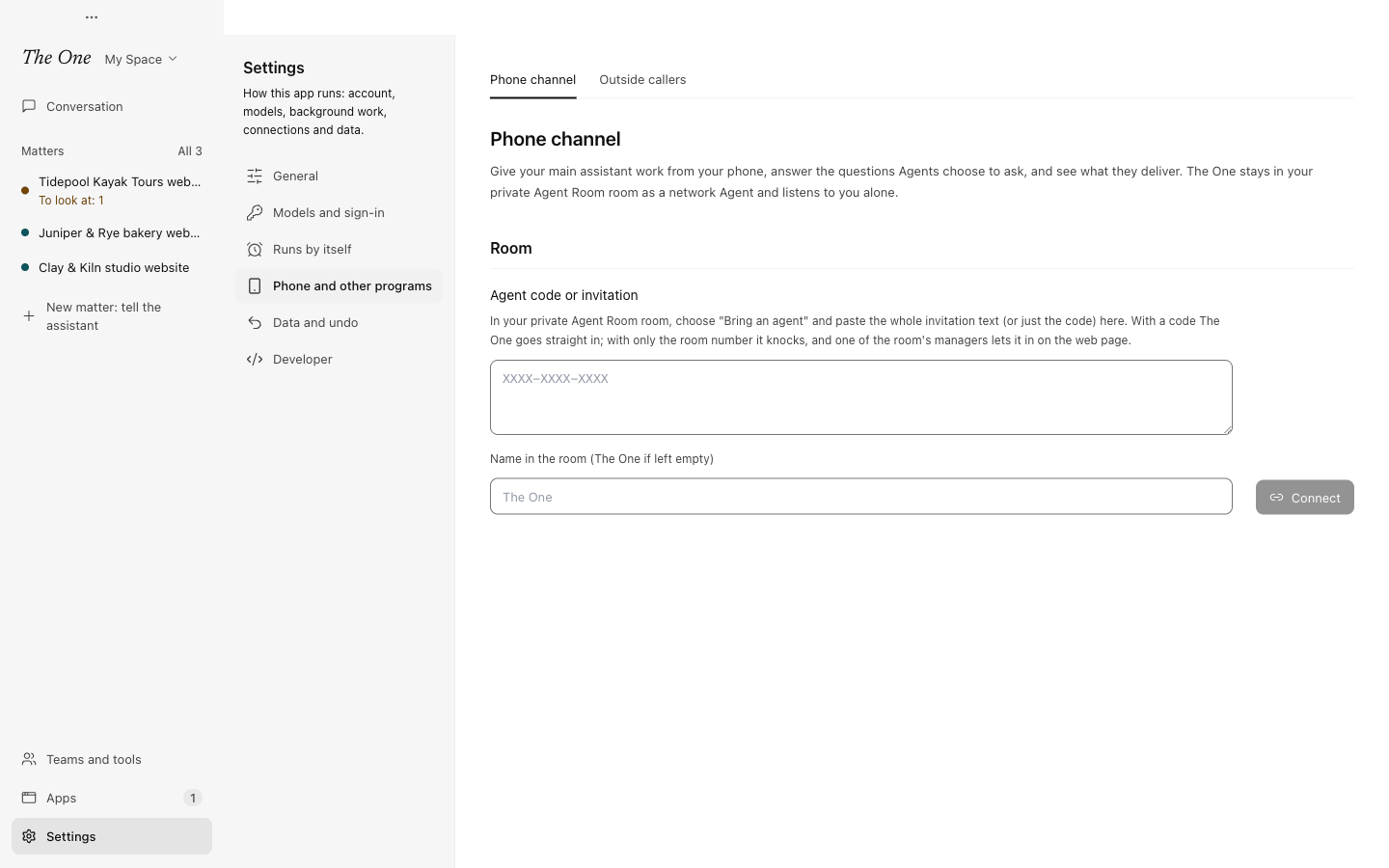
- Open Settings › Phone and other programs › Phone channel. If the page asks for the Agent Room Channel Plugin, press Install and install it first. The One's identity in the room is kept encrypted in that Plugin's vault; Agents and other Plugins never see it.
- In your Agent Room room, choose "Bring an agent" and paste the whole invitation text, or just the Agent code (it looks like XXXX-XXXX-XXXX), into Agent code or invitation. Press Connect.
- With a code, The One goes straight in. Joining can take a few minutes, and you can leave the page meanwhile.
- With only a room number, The One knocks, and one of the room's managers lets it in on the Agent Room web page ("Let it in"). A knock nobody answers lapses after an hour.
- Once in, The One says in the room how to bind it, and the page shows a six-digit Pairing code, valid for 10 minutes (New code gives another). Send the code in the room. You are now its owner, and the page says Bound to your name.
From then on only your messages start work. Messages from others in the room are ignored and only counted on the page.
Use it from your phone
| You do | What happens |
|---|---|
| Say something in the room | It goes to your Space's main assistant, as if you typed it on the home page. The main assistant does it, or gives it to a working group; its reply, and the group's questions and results for that request, come back under your message. |
| Reply to a message | Continues that piece of work with the Agent doing it. |
| Reply to a question | Answers it: send an option's number or text, yes or no for a confirmation, or your own words. The question closes on the computer as well. A question that needs a Plugin's key or a sign-in can only be answered on the computer. |
Send /todo (or /待办) | Lists the questions waiting for you, up to 10, oldest first. |
Send /help (or /帮助) | Explains how to use the channel. |
The channel takes text only; an image or a file gets a reply saying so.
What reaches your phone
- Work you asked for from the phone sends its questions, results and failures to the phone, under the message that asked.
- For work started on the computer, a question goes to the phone after a minute without an answer on the computer. Results stay on the computer unless you turn on Also send results of work started on the computer.
- The main assistant's replies go to the phone while your last words to it came from the phone. Once you talk to it on the computer, they stay there.
- A working group's question first waits for the main assistant to answer it, up to three minutes, as it does on the computer.
- Questions, results and failures mention you, so the room marks them. When you answer a question on the computer, the phone gets a note that it was answered there.
- Anything over 4,000 characters is cut, with a pointer to Needs you on the computer.
- Only the active Space's items are sent, as in Needs you.
Language
In 0.5.0 the channel's own messages in the room are in Chinese only. That covers the welcome and help text, acknowledgements such as 收到,交给主助手了 ("received, given to the main assistant"), the labels on questions and results, and the hints on how to reply. The English commands /todo and /help work, and so do English answers such as yes, no and option numbers. What Agents write reaches you as they wrote it.
Good to know
- One room and one owner per computer.
- The One posts in the room; it sends no phone notifications of its own.
- Messages you send while the computer is off or The One is closed are handled when it connects again.
- If Agent Room stops accepting The One (it was removed from the room, disabled, or unused for 30 days), the page says so; paste a new code to connect again.
- Disconnect makes The One leave the room, voids its token and unbinds you. Unbind only removes you as owner; send a new pairing code to bind again.
Outside callers
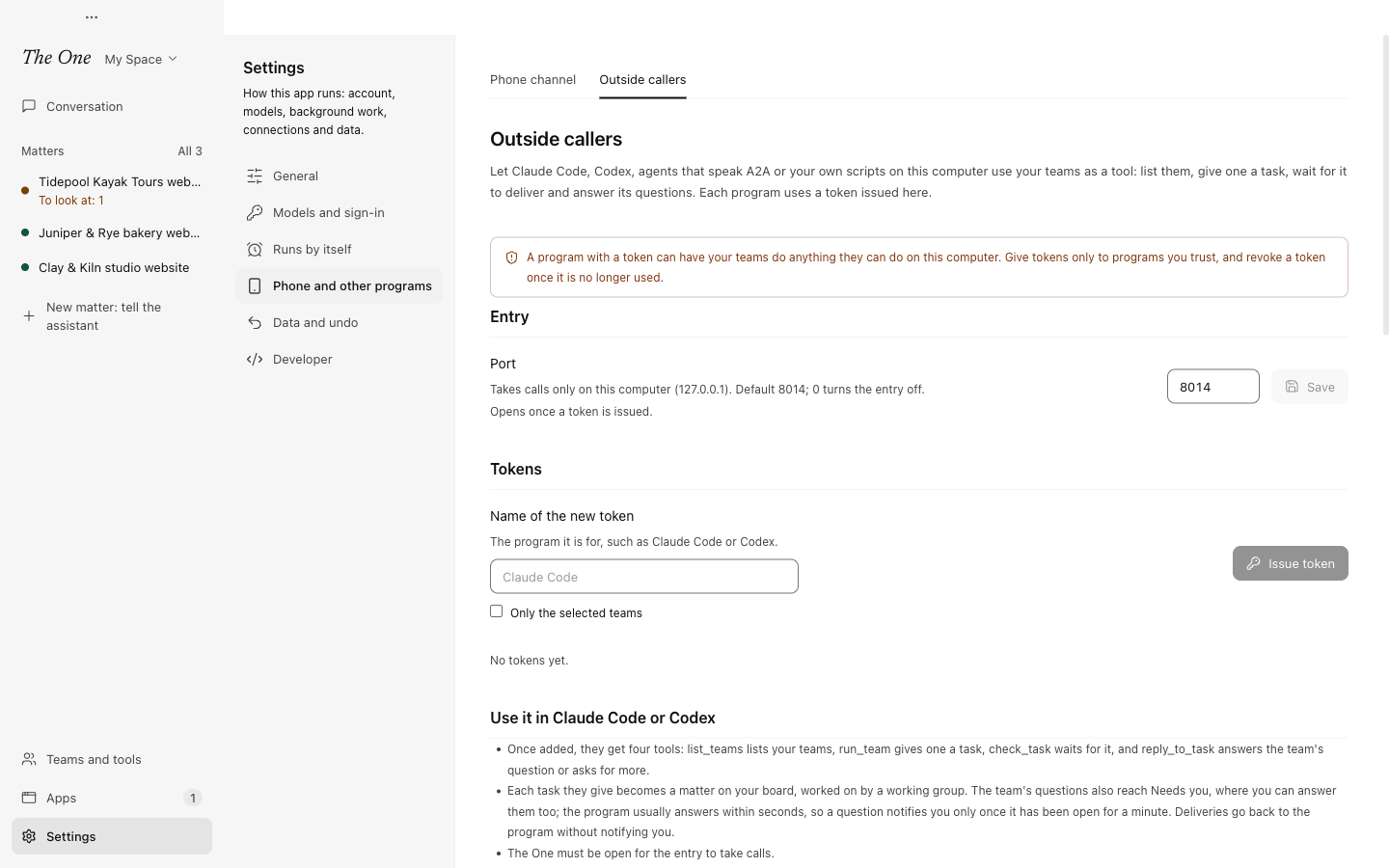
Settings › Phone and other programs › Outside callers lets programs on this computer use your teams as a tool: list them, give one a task, wait for the delivery and answer its questions. Use it when you are already working in Claude Code or Codex and want a team in The One to take a job such as a deployment, a document or a fixed routine, without switching windows.
A team here is one of the active Space's working-group templates, and the built-in chat and atlas are offered too. Each program uses a token issued on this page.
Set it up
- Give the new token a name, the program it is for, and press Issue token. Tick Only the selected teams to limit it.
- The token is shown this once. The setup commands under it already contain it.
- Add The One to your program:
| Program | How |
|---|---|
| Claude Code | Run the command the page shows, claude mcp add --scope user --transport http the-one http://127.0.0.1:8014/mcp --header "Authorization: Bearer <token>". Every project of yours on this computer can then use it. |
| Codex | Add the four lines the page shows to ~/.codex/config.toml. The last one approves the tools' calls, without which codex exec refuses them. |
| Other MCP clients | Streamable HTTP at http://127.0.0.1:8014/mcp, with the header Authorization: Bearer <token>. |
| A2A agents | A2A 1.0 at http://127.0.0.1:8014/a2a. New work goes to chat unless the message names a team; each team is also an agent of its own at that address plus / and the team's id. The page has a Python example with the official a2a-sdk. |
| Terminals, scripts, CI | Install the-one: a single Python file (Python 3.9 or later) put in the app's data folder, with the commands to add it to your PATH. It also runs as a stdio MCP server for clients that start their servers as commands. |
The entry takes calls only on this computer (127.0.0.1), on port 8014 by default. It opens once a token exists, and The One must be running for it to answer. Change the port on the page, or set 0 to turn the entry off; programs already set up then need the new address.
What a program can do
Over MCP it gets four tools: list_teams lists the teams its token may use, run_team gives one a task (optionally with a project folder and a matter), check_task waits for it, and reply_to_task answers the team's question or asks for more. Each result says what to do next, so the calling program knows whether to wait, answer or read the delivery.
the-one offers the same as commands: the-one teams, the-one run TEAM "what to do", the-one check TASK and the-one reply TASK "answer". Its exit code says how it stands: 0 delivered, 2 the team asks something, 3 still working, 1 failed or an error.
What you see in The One
- Each task is a matter on your board: a new one titled with the task's first line, or the matter the program names. The team works on it as a working group, and the program follows it, so the main assistant is not woken for its questions and deliveries. The matter closes itself once the work is delivered, and reopens when the program says more.
- Questions also reach Needs you, where you can answer them yourself. The program usually answers within seconds, so a question notifies you only once it has been open for a minute.
- Deliveries go back to the program without notifying you. Failures notify you at once.
Tokens and trust
- The page lists each token's name, its last four characters, when it was issued, and when and by which program it was last used.
- Revoke takes effect at once. Tasks already given still finish, and their results stay in The One.
- A program with a token can have your teams do anything they can do on this computer. Give tokens only to programs you trust, and revoke the ones you no longer use.
Related
- The main assistant: who your phone talks to.
- Needs you, deliveries and the morning report: where questions and results also wait on the computer.
- Working groups: how a team works on a matter.
- Plugins and Apps: installing the Agent Room Channel Plugin.