
Documentation
Matters and boards
A matter is one thing you care about, kept as a board of cards that you, the main assistant and the working groups all read and write.
A matter is one thing you care about, such as a feature, a shop or a trip, kept as a board of cards. You, the main assistant and the working groups read and write the same board, so it always shows what waits for you, what has happened and where the work stands.
Where matters come from
- The main assistant opens most of them: when something you ask needs more than one answer, it opens a matter and gives the work to a working group in the same step. See The main assistant.
- You can open one yourself with Open one yourself in the Matters overview, to collect notes before you hand something over.
- A working group can open a sub-matter for part of its work (see below).
- An outside program that uses your teams puts each task it brings on a matter: the one it names, or a new one. See Phone channel and outside callers.
A matter is not a single run. Several working groups can work on it at the same time or one after another, and for a while none may. Matters belong to the Space you are in.
Matters in the sidebar
Open matters are listed under Matters in the sidebar, each with a dot and one line on how it stands. Those that wait for you come first, then those in trouble, then work going on, then delivered and quiet ones; within each, the most recently changed comes first. The Matters heading says how many are open, such as All 4, and opens the Matters overview (below).
| The line says | What it means |
|---|---|
| At its usage limit; waits for you | Its work paused at the limit you set. Resume it on the matter's page. |
| A model connection needs you | A model connection refused its group's work (a key, access or the plan), and only you can fix it. |
| To answer: 1, To look at: 2, or 1 to answer, 2 to look at | Questions and deliveries wait for you, its sub-matters' included. |
| A working group did not finish | A group's run failed. |
| Hitting errors; retrying by itself | An Agent keeps failing and keeps retrying on its own. |
| A working group is at it | Work is going on. |
| Queued | Its group finishes another matter's work first. |
| A sentence of its own | Nothing above applies, so you see the one-line summary the main assistant keeps current. |
| Delivered | Its groups have delivered and nothing waits for you. |
| Always on · waits for its next trigger | Nothing is going on now; its triggers bring the next work. |
| Not started yet | No group has started on it. |
New matter: tell the assistant, under the list, takes you to the main assistant's composer. Closed matters leave the list; the Matters overview shows them under Closed.
The Matters overview
The overview, titled Matters, lists every open matter, one line each: its dot and status line, the working groups on it in plain words (such as Software team) and when it last changed. The lines come in four parts: Waiting for you, In progress (including matters whose groups did not finish or keep hitting errors), Scheduled (matters whose triggers bring their work) and The rest. The filters at the top (All, Waiting for you, In progress, Scheduled and Closed) narrow the list to one part, or to the matters you closed, and Search matters finds a matter by its title or its one-line summary.
At the top right, New matter: tell the assistant takes you to the main assistant's composer, and Open one yourself opens a matter by hand, for when you want to collect notes before you hand something over. Give it a Title, say What it is and where it should get to, choose Open matter, and you land on its board. The assistant sees it among its matters; tell it what to do with it.
The board
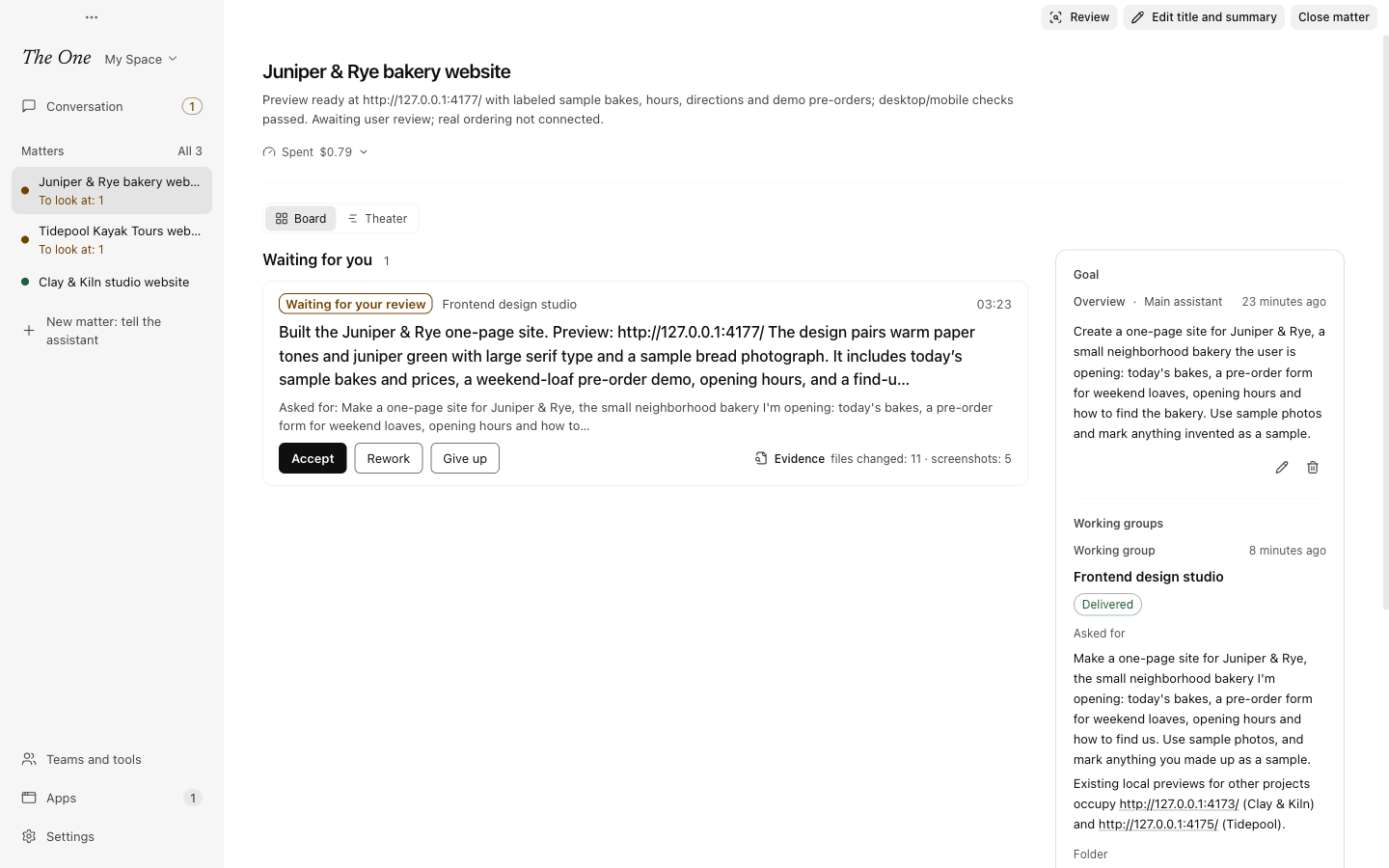
Open a matter and you see its board in two columns.
On the left:
- Waiting for you: what waits for you on this matter or its sub-matters, such as a group's question or a delivery that waits for your verdict, each with the working group it came from. These are the same cards as in the main assistant's conversation and in Needs you, and you answer, judge or resume right on them (see Needs you, deliveries and the morning report). Only the latest delivery of a piece of work waits here; earlier ones become history. Once you have handled a question or delivery, the board's own Question or Delivery card for it is under Progress.
- Readings and panels: data cards and panel cards, which need the width.
- Progress: everything else, newest first and grouped by day, each entry with the time it last changed. Long text starts folded.
On the right, The matter itself:
- Goal: the overview cards, which say what the matter is and where it should get to.
- Working groups: a card for each group on the matter, and the cadence card when the matter has triggers.
- Checklists, links and files.
- Sub-matters, when there are any.
- Buttons to add a note, a checklist, a link or files of your own.
Each card's header names its kind and who put it there: You, Main assistant, a working group by its plain name, such as Software team, or The One for a card the app wrote. Question and delivery cards name the group they came from; a group's own card, titled with the group's name, and the cadence card name no one. The developer view adds the IDs of the matter, the template and the run (see Settings).
Cards
Everyone writes the same kinds of cards, except four that The One keeps in step with its own records. Nobody else writes or removes those four. That is about keeping them true, not about permission.
| Card | Who writes it | What it holds | What you can do |
|---|---|---|---|
| Overview | Anyone | What the matter is and where it should get to. The main assistant holds deliveries against it. | Edit or remove it. |
| Note | Anyone | A piece of text in Markdown: a decision, a preference, a fact. | Add, edit, remove. |
| Checklist | Anyone | Items to tick, up to 200. | Tick items right on the card; add, edit, remove. |
| Link | Anyone | An address with an optional note; The One can check that a web address still opens. | Add, edit, remove; Check now, Pin. |
| Files | Anyone | File paths, one per line. | Open the files; add, edit, remove. |
| Data | The main assistant or a working group | What a source says now: a Plugin tool, a file or folder, a web page or a command, shown as a number, a table, a line chart or text. | Read now, Pin, rename, remove. |
| Panel | The main assistant or a working group | A Plugin tool's panel, pinned to the board for you to use. | Use the panel, Reload, rename, remove. |
| Working group | The One | A group at work on the matter: its state, what it was Asked for, its Folder and who talked to it last. | Talk to this group, Pause or Resume, Do this first, Retry now. See Working groups. |
| Question | The One | A question a group asked, with its options, and who answered it. | Answer opens the asking Agent's conversation. |
| Delivery | The One | Work a group handed back, how that piece of work stands, and its Evidence. | Accept, Rework, Give up; Open the conversation. |
| Cadence | The One | The matter's triggers: what each waits for, where its work goes, and its next and last fire. | Fire now, Pause or Resume. See Triggers and running in the background. |
Data cards
A data card shows what a source says now: a Plugin tool's answer, a file or folder, a web page or the output of a command. Agents write these cards, so ask the main assistant when you want one, for example "put this week's orders on the board as a table". The One reads the source itself, the way the Agent that wrote the card would, and draws the reading as plain text and numbers.
- It reads when the card is on screen and a new reading is due. The card says when it was read and how often it may be read again.
- Read now reads it at once. Pin keeps it read on its interval while The One runs, even when nobody looks, as long as the matter is open in the active Space; Unpin stops that.
- When a read fails, the card keeps the last reading and says why the latest try failed.
What a data card shows comes from outside. When Agents read the board, they get it marked as outside data: facts to check, not instructions to follow.
Link checks
Tick Open it now and then to see that it still opens (web addresses) on a link card, and The One opens the address at most every five minutes while the card is on screen; once you pin it, it checks on time even when nobody looks, as long as the matter is open in the active Space. The card says whether it opens (with the HTTP status and how long it took), answered with an error, or does not open, and where it ends up when the address redirects. Check now checks at once. The One never opens a link that is not ticked.
Panel cards
A panel card puts a Plugin tool's panel on the board, such as a shop's list of orders. It takes a full row and loads when it first comes on screen. The One runs it for you, not the Agent that pinned it, so it keeps working after that Agent has finished. When the tool only reads, the panel opens with what the tool says now; a tool that changes things is not run just to show its panel. Reload loads it again.
What you do through a panel is yours. Those calls go into the action log as made by you through a panel on a board, count toward the matter's changes and can be undone. Panels show in the desktop app only.
Versions and edits
Every save of a card keeps a version, and a removed card keeps its history. If someone changed a card after you opened it to edit, your save is refused and the board shows the new version; make your edit on that one. A card holds up to 64 KB, so longer things belong in files that a card points to.
The header
At the top of the page are the matter's title, its one-line summary, chips such as Closed and Always on, and what it has spent. Its buttons sit at the top right of the window:
- Review, once a working group has a run: what each group changed and made. See Working groups.
- Make it a matter of its own, on a sub-matter.
- Edit title and summary.
- Close matter, or Reopen matter on a closed matter.
Once a working group works on the matter, a switch above the board flips between Board and Theater. Theater shows every group's Agents at work on one screen.

Spending and limits
The Spent line counts every model response the matter's working groups got while they worked on it, its sub-matters included: the cost, the tokens, how many of them were unattended, and the limit. Hover it for the number of model calls and how much came from cache. Unattended is what the groups spent since you last stepped in: a message, an answer, an edit or a retry of yours to one of its groups, or words of yours that the main assistant passed on.
Set a limit caps the unattended spending, in millions of tokens (at least 0.01, that is 10,000 tokens). When the groups reach it, the work pauses at its next checkpoint (a step under way finishes first), a banner says how much was spent, and you get a notice. Resume, in the banner, lets the work go on and starts the count over. Change edits the limit or removes it.
- A limit covers the matter's sub-matters too.
- Shortly before the limit (at 80%), the Agents at work are told that the matter's work will pause there.
- A group that also works for other matters goes on with their work while this matter's work waits.
- The main assistant sets a limit, or resumes paused work, only on your word.
Changes and undo
Below the board, Changes counts the files the matter's working groups changed and how many of them can be put back; open it for the list. Undo these changes shows a preview first, then puts each file back the way it was before this matter's work first changed it, its sub-matters' work included. Files changed since then are left alone unless you say so. The undo is recorded too, so you can undo it in turn. See Action log, undo and stopping.
Closing and reopening
Close a matter when you are done with it. The work for it stops at the step it is at, and its triggers pause. A group that also serves other matters goes on with theirs. Reopen picks up where the work stopped: paused groups go on, and its triggers come back on, counting from now (fires missed while it was closed are not made up).
Closing is not a verdict: a delivery that arrives while the matter is closed still waits for you. Closed matters leave the sidebar; find them in the Matters overview under Closed. You can also tell the main assistant to close a matter.
Sub-matters
A working group can open a sub-matter for a part of its work that has its own goal and delivery, or that you may want to follow on its own, such as the logo for a shop. Sub-matters are listed under that heading on their matter's board, not in the sidebar, and a sub-matter's page leads back to its matter.
- A sub-matter's questions go first to the group that opened it. The question card says so, and what you tell the asking Agent directly answers it too.
- Its deliveries go to that group, which uses them (Handed to the group that opened it); they do not wait for you.
- What it spends counts toward every matter above it, and their limits cover it.
- Closing a sub-matter stops only its own work; closing the matter above it stops it too.
Make it a matter of its own lifts a sub-matter to the top level. It joins the matters in the sidebar and the main assistant's list, and from then on what it spends counts toward it alone; what it spent before stays counted where it was. Its questions still go first to the group that opened it.
Always on, and the evolution matter
A matter whose triggers are on is Always on: its work comes by itself, on time or when something new arrives. Its cadence card lists each trigger with its next and last fire, and the Scheduled filter of the Matters overview lists these matters together. The main assistant sets these up for recurring work, such as each new order, the mail or a weekly report. See Triggers and running in the background.
When you ask the main assistant to improve the Space, the matter it opens for that shows the lab's figures and rules above the board. See Evolution: the lab and the nightly review.