
Documentation
External tools (MCP)
Connect MCP servers so roles can reach outside services and data: local and remote servers, sign-in, panels, long-running tasks and which role gets what.
External tools (MCP) is where a Space connects Model Context Protocol servers: programs and services that give Agents tools, data and panels beyond the built-in ones. This page defines each connection; a role's MCP Servers setting decides which Agents use it.
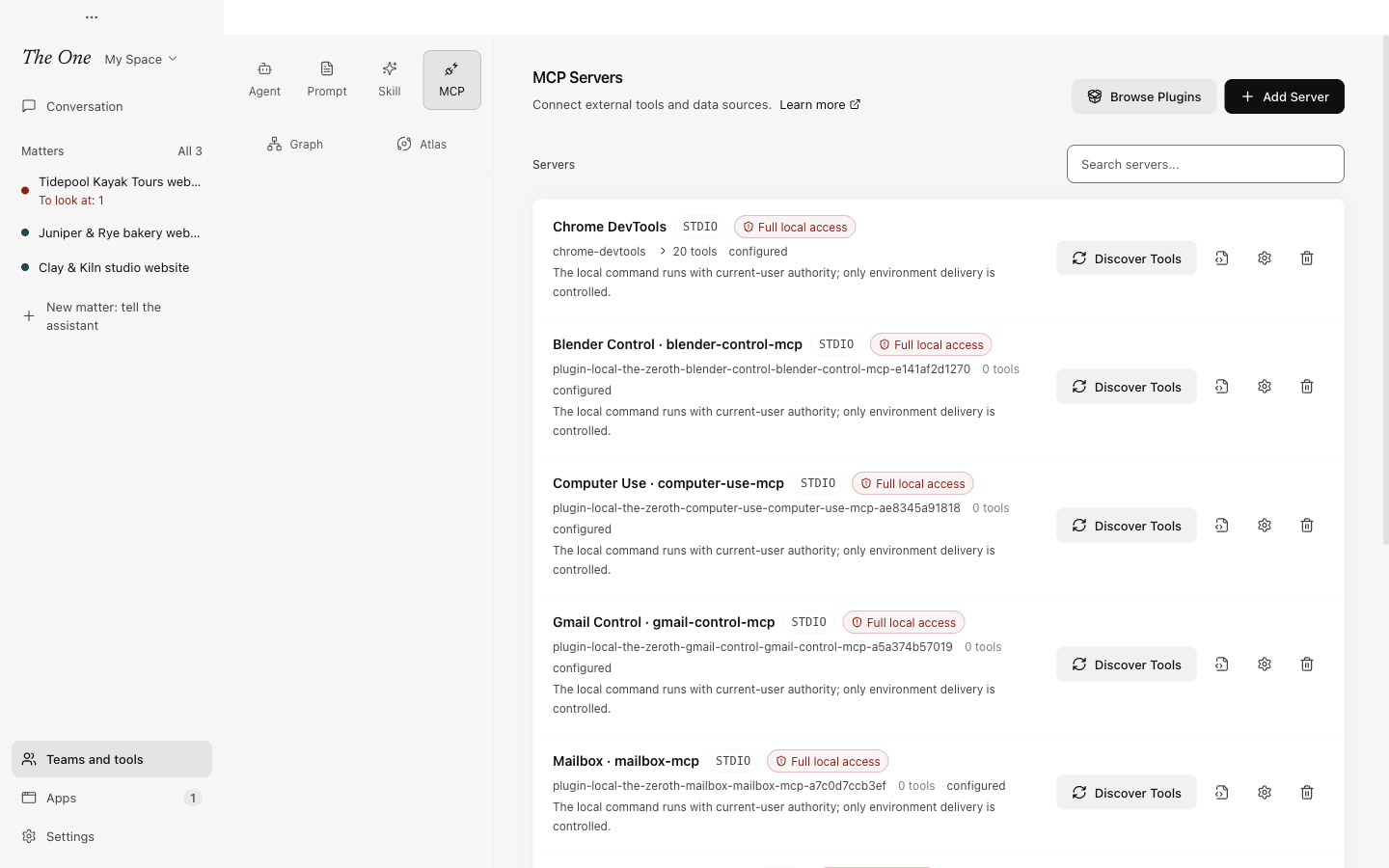
Open it from Teams and tools › External tools (MCP). The page is called MCP Servers, and its tab in the editors is MCP.
Add a server
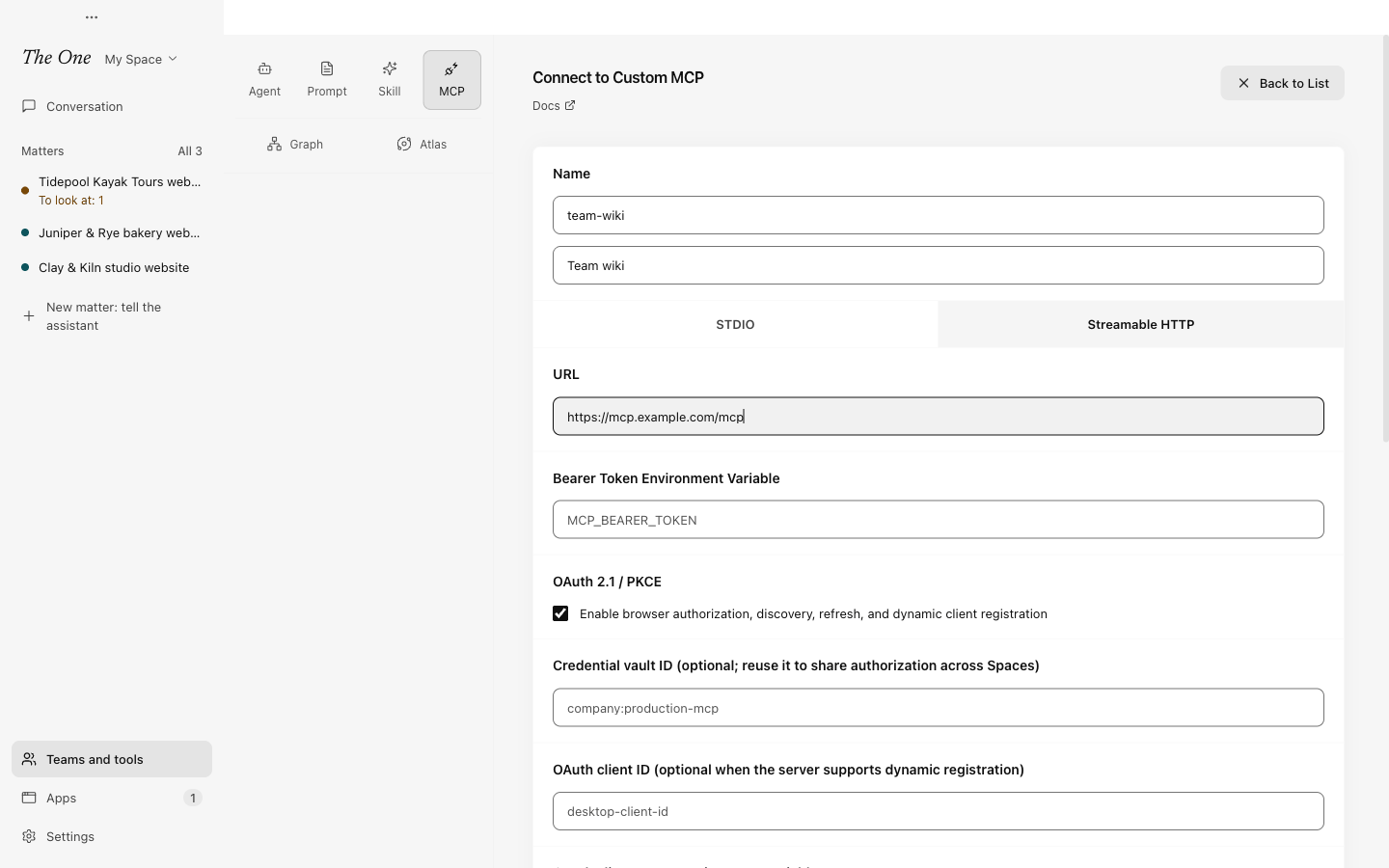
Choose Add Server. The form, Connect to Custom MCP, starts with the Name: the server's ID, which roles refer to, so it cannot be changed after saving. A display name is optional. Then pick how The One reaches the server.
STDIO runs a program on this computer:
- Launch Command and Arguments, for example a command that starts with
npx. - Environment Variables to hand to the program, and Environment Passthrough for variables it should receive from the app's own environment.
- Working Directory. Without one, the server gets a folder of its own in the app's data, so its scratch files stay out of your projects.
A STDIO server runs with your user account's rights: it can read and change files, use the network and start other programs. The page marks it Full local access; the environment settings only decide which values it receives and are not a sandbox.
You do not need Node installed for servers started with npx or node: The One uses your computer's Node when there is one, and its own otherwise. On a Mac, commands installed with Homebrew, nvm or Volta are found even when you open the app from the Dock.
Streamable HTTP connects to a server on the network:
- URL of the server.
- Headers, such as an API key the service asks for, and Headers from Environment Variables. Bearer Token Environment Variable names a variable that holds a bearer token.
- OAuth 2.1 / PKCE for a server that asks you to sign in (below).
When you save, The One discovers the server's tools; if that fails, the server is saved anyway and you can try again later. Each row in the list shows how the server is reached, its number of tools (expand it to read them) and Discover Tools, which lists them again, for example after the server changed. Source shows the server's file with secret-looking values masked.
Sign in to a server (OAuth)
For a remote server that needs a sign-in, check OAuth 2.1 / PKCE ("Enable browser authorization, discovery, refresh, and dynamic client registration"). Usually that is all you fill in: The One finds the server's sign-in settings and registers itself with it.
- OAuth client ID: only when the service gave you one, or when a sign-in stops and asks for it.
- OAuth scopes: only when the service asks for specific ones.
- Credential vault ID: give several Spaces the same ID and they share one sign-in.
- OAuth loopback redirect URI: where the sign-in returns,
http://127.0.0.1:33418/callbackunless the service needs another.
When you save the server, or later choose Discover Tools, its sign-in page opens in your browser. The tokens are kept in your system's keychain, never in the Space.
An Agent's call never opens a sign-in by itself. When a saved sign-in stops working, the Agent is told so and goes another way or asks you; sign in again with Discover Tools on the server.
Give servers to roles
In a role's editor, Capabilities › MCP Servers decides which servers its Agents use: All for every server in the Space, including ones added later, which reach the Agent from its next turn, or Custom to pick them (Roles). An Agent can also add a server of the Space to itself while it works.
In the official Space and in your copies of it, the main assistant and the General group's assistant get every server, so a server you add reaches them from their next turn. Team roles get only the servers their work needs.
How Agents use MCP tools
- To keep each request short, an Agent first sees an MCP tool by name only. It finds tools with
search_toolsand loads a tool's full description and parameters withload_tool, ready from its next turn. - Besides tools, Agents can list and read a server's resources and use its prompts.
- A server can ask a question in the middle of a call, for example to confirm an option. The Agent gets the question as the call's result and answers it.
- Tool cards label each call Read-only, Changes things or Reaches outside, from hints the server gives. The hints only describe: nothing is stopped or asked because of them. Read-only calls an Agent makes together run side by side.
- Every call is recorded in Settings › Data and undo › Action log, and files a call changed can be put back there (Action log, undo and stopping).
Long calls and restarts
A server on the 2026-07-28 revision of MCP can turn a long call, such as a render or a backtest, into a task. The Agent waits for it as usual or lets it run in the background, and the progress the server reports shows on the call's tool card and in a matter's Theater.
If the app restarts meanwhile, The One asks the server for the same task's result instead of calling the tool again. A call that was not a task, or whose task the server no longer knows, is repeated only when the server marks the tool read-only or safe to repeat; otherwise the Agent is told that the result is unknown, because the work may or may not have been done.
Panels (MCP Apps)
A tool can come with a panel: a small app page from its server. The panel shows under the tool's call in the conversation. The three most recent load by themselves, older ones on a click, and each can be hidden, reloaded, shown fullscreen or pinned to the side panel.
You and the Agent work on the same thing there. A panel can call its own server's tools, tell the Agent what it shows, or pass your message to the Agent. What you do in a panel is recorded in the action log as yours and can be undone like an Agent's call.
Panels are isolated: they cannot reach the app, your files or the app's tokens, and they reach the network only where their server declared. The main assistant or a working group can also put a panel on a matter's board as a Panel card (Matters and boards).
Protocol versions
The One talks to both generations of MCP servers and tells them apart by itself: servers on the 2026-07-28 revision, which need no handshake or session, and older ones (2024-11-05 to 2025-11-25), which handshake first. The older HTTP+SSE transport is not supported. A STDIO server keeps running between calls, so a server that keeps state keeps it.
The server in the official Space
The official Space ships one server, Chrome DevTools: browser automation in the Google Chrome installed on your computer. Agents open and navigate pages, read them as text snapshots or screenshots, click and fill in forms, and read the console and network requests. Its package comes with The One, so it needs neither Node nor a download. Each run gets a browser profile of its own, so one working group never acts on another group's pages.
Ten roles of the official Space that work in a browser use it: the software team's solution lead and developer, the three frontend studio roles, the Blender director and reviewer, the deep web researcher, and the product evaluation director and simulated users.
Controlling the desktop and other apps is not a server in the Space: it is the Computer Use Plugin.
MCP servers inside Plugins
Many tools come as Plugins that carry an MCP server, such as Blender Control, OneCanvas, Gmail Control and Computer Use. Install the Plugin and add it to a role: the server's launch settings come from the signed Plugin and its keys from the Plugin's own settings, so there is nothing to fill in on this page. Browse Plugins opens the Plugin library (Plugins and Apps).
Prefer a Plugin when a tool needs code, settings or keys you would otherwise set up again in every Space. Keep a server on this page when it belongs to this Space alone.
Secrets and sharing
A server's settings are a file in the Space's mcp_servers folder. When you export or share the Space, values that may be secrets are removed from these files, so the person you share with fills in their own. Sign-in tokens never leave your keychain. See Definition Spaces.
The official Space is read-only: copy it before you add servers.